Payroll rule groups
A rule group holds the country, currency, deductions, contributions, allowances, accruals and night, Sunday and holiday settings that apply to a set of employees; this page shows how to create one and add its rules.
Written By Chris Scaminaci
Last updated About 1 hour ago
A rule group is the payroll policy for a set of employees. It names a country and a currency, lists the rules that take money out of pay or add to it, and carries the night, Sunday, holiday and paystub settings. Every employee is assigned one rule group on Payroll employees, and the group applies to them unless they have an override.
Before you start. The Timeclock & Payroll module must be on. You can work on rule groups in two places:
- The Rule Groups tab of the Admin Hub. The Administrator, Timeclock Admin and Payroll Admin roles can use it. It has every option.
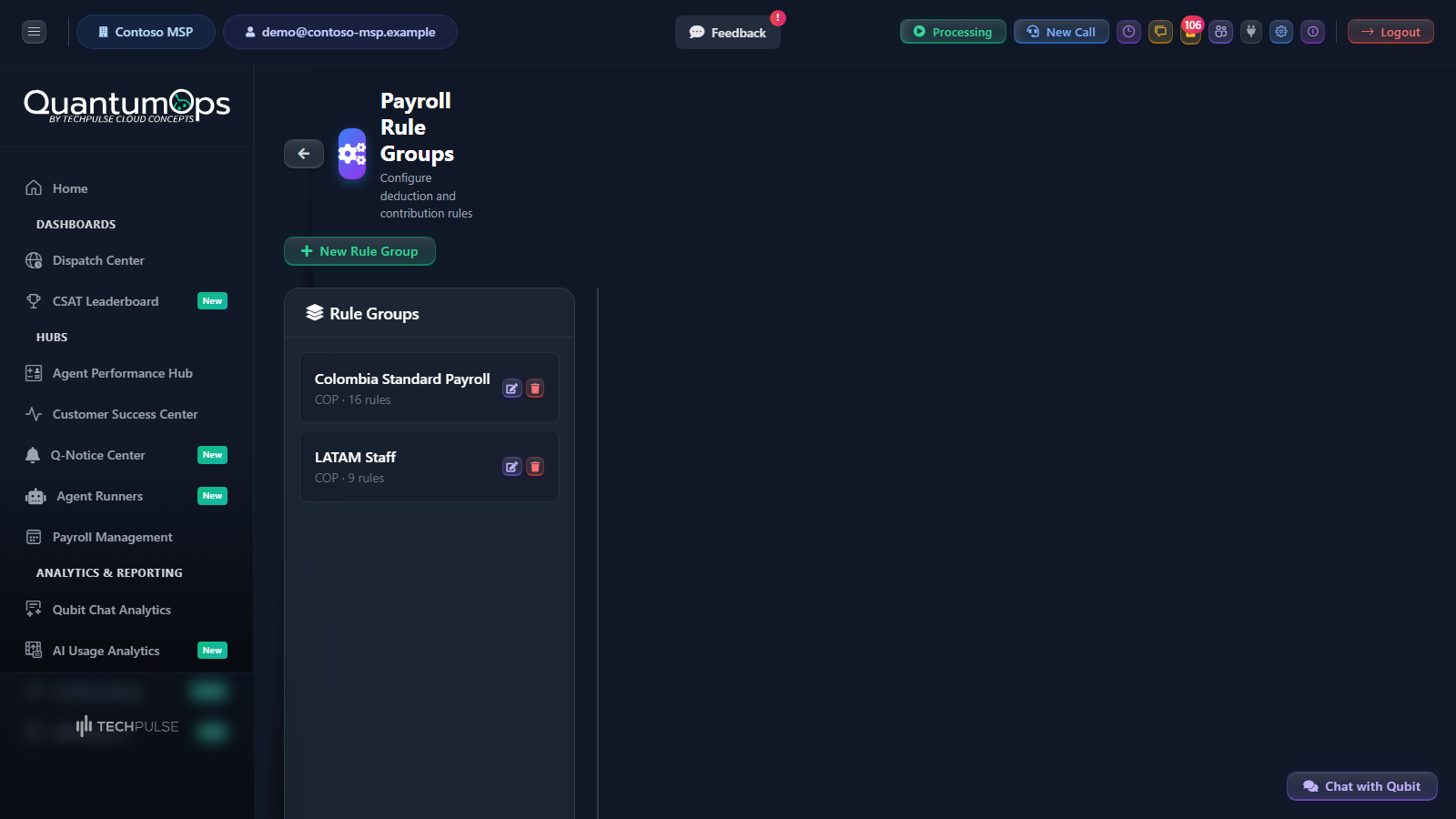
- The stand-alone page at
/timeclock/payroll/rules. The Administrator and Payroll Admin roles can use it. It has fewer group options and some extras for rules. See Where each option lives.
Create a rule group from a template
A template gives you a working group to adjust. Templates are on the Admin Hub only.
- Open the Admin Hub and choose the Rule Groups tab.
- Choose US Template or Colombia Template.
- Confirm the question that appears.
The new group is selected, with its rules listed on the right.
- US Template creates "US Standard Payroll" in USD with social security and Medicare (each split between employee and employer), federal and state income tax, and federal unemployment (employer only).
- Colombia Template creates "Colombia Standard Payroll" in COP with health and pension (split between employee and employer), workplace risk, accrual rules for the service bonus, severance, interest on severance and vacation, the employer contributions to SENA, ICBF and the family compensation fund, a transport allowance for lower salaries and the progressive solidarity pension brackets. It also turns on the night window of 19:00 to 06:00 and sets overtime to be counted per week against a 44-hour threshold. Sunday pay still comes from each employee's own Sunday Multiplier, which you set on Payroll employees.
Review every rate before you rely on a template. The income tax rules start as flat percentages, and legal rates and thresholds change.
Create a rule group by hand
- Choose New Rule Group.
- Enter a Group Name.
- Choose a Country: Colombia, United States, Mexico, Philippines or Other. Choosing a country sets the Currency to match (COP, USD, MXN or PHP). You can still change it.
- Add a Description if you want one.
- Set the options below, then choose Create Group.
On the stand-alone page the dialog has only Group Name, Description, Currency and Country, and you type the country.
The country is more than a label. A group set to Colombia is calculated with Colombian conventions, for example a 30-day month when allowances and salaries are prorated. See How pay is calculated.
Night differential
Tick Apply Night Differential to set the night window. Choose a Country Preset, or choose Custom and fill Night Shift Start and Night Shift End yourself. Until you change them, a new group shows 22:00 to 06:00.
- Colombia (9PM - 6AM) sets the window to 19:00 to 06:00.
- US (10PM - 6AM), Mexico (10PM - 6AM) and Philippines (10PM - 6AM) set 22:00 to 06:00.
- If you change the Country while the box is ticked, the preset follows the country.
The pay calculation uses the start and end times to decide which hours are night hours. The multiplier that pays those hours is set on each employee as Night Differential. See Payroll employees.
Clearing Apply Night Differential does not stop night pay. The group then uses 19:00 to 06:00, and night hours are paid for every employee whose Night Differential is above 1.0. To pay no night premium, set Night Differential to 1.0 on the employees.
Sunday premium
The Sunday premium is paid from each employee's own Sunday Multiplier, for example 1.75 in Colombia. Set it on Payroll employees for every employee who works Sundays. The group's Apply Sunday Premium and Default Sunday Multiplier fields do not change pay.
Holiday calendar
Choose a Holiday Calendar for the group, or leave No Calendar Assigned. Without a calendar, none of the group's days count as holidays. Calendars, imports and holiday pay are on Holiday calendars and holiday shift bidding. The Manage Calendars button and the import buttons appear only when you edit a group that already exists.
Paystub branding
A rule group can carry its own paystub header and logo, and can hide employer costs; see Brand the paystubs. Paystubs themselves are covered in Payroll wizard: finalize and paystubs.
Add a rule
- Select the group in the list.
- Choose Add Rule.
- Fill in the rule, using the sections below.
- Choose Add Rule again to save it. When you edit an existing rule, the button reads Save Changes.
Each rule card shows its number, name, type and category, how it is calculated, what it is based on and who pays. Use the edit and delete icons on a card to change or remove a rule.
The basics
- Rule Name is required.
- Sort Order sets the order the rules are processed in, lowest first. New rules go to the end by default.
- Rule Type says what the rule is. The paystub and the exports use it to place the rule. What the rule does in the calculation comes from the settings below, not from the type, except for the PTO type described after this list.
- Category is a label for grouping. On the Admin Hub you choose Tax, Insurance, Pension, Allowance, Union or Other. On the stand-alone page you type it.
- Active: clear it and the rule is skipped when pay is calculated. Use this to switch a rule off without losing it.
The types are listed differently on the two screens:
A rule of type PTO adds paid time off hours to the employee's balance each time pay is calculated: per hour worked, per day worked, or a fixed number of hours, depending on its calculation type. Time off is covered in Time-off balances, accruals and bulk changes.
The calculation
The Admin Hub shows these as Percentage, FixedAmount, PerHour and PerDay, and writes the bases as one word, such as GrossPay. The Admin Hub also lists Formula. A Formula rule calculates nothing, so use one of the other four. The stand-alone page shows Percentage, Fixed Amount, Per Hour and Per Day, and writes the bases with spaces.
Based On tells a percentage what to take its percentage of. Per Hour and Per Day rules count hours and days directly and do not use it.
- Gross Pay is the period's gross pay, including allowances but leaving out any allowance marked Exclude from deduction base (IBC).
- Net Pay is gross pay less the employee-paid rules processed before this one, so the order of the rules matters.
- Base Salary (Admin Hub only), Total Hours, Regular Hours, Overtime Hours and Days Worked are the other bases. The Admin Hub also lists Hours Worked, which counts the same as Total Hours.
Min Amount (Floor) and Max Amount (Cap) (called Minimum Amount (optional) and Maximum Amount (optional) on the stand-alone page) keep the calculated amount between two limits. Leave them blank for none.
Allowances and the deduction base
- Add to gross pay (allowance) (Add to Pay (Allowance) on the stand-alone page) makes the rule add to pay instead of taking from it. Use it for a transport or meal allowance.
- Exclude from deduction base (IBC) (Exclude from Deduction Base on the stand-alone page) keeps the amount out of the base that gross-pay percentages are taken from. In Colombia the transport allowance is left out of the social security base this way.
Who pays
On the Admin Hub, tick Employee Paid, Employer Paid or both. The employee's part is deducted from their pay. The employer's part is added to the burdened cost, which is gross pay plus the contributions the employer pays. On the stand-alone page the same choice is called Who Pays?, with Employee (deducted from pay) and Employer (added to burdened cost).
For a contribution shared between the two, tick both and enter Employee % and Employer %. On the stand-alone page they are Employee Share (% of Value) and Employer Share (% of Value), under Split Contribution (Employee + Employer).
- The two shares are parts of the rule's own amount, not percentages of pay. They should add up to about 100.
- If you tick both Employee Paid and Employer Paid and leave the shares blank, the whole amount is taken from the employee and also added to the employer cost. Always enter both shares for a shared contribution.
- Example: a health contribution with a Value of 12.5 split 32 to the employee and 68 to the employer takes 4% of gross pay from the employee and 8.5% from the employer.
- The stand-alone page shows the result as Effective rates: and warns you when the shares do not total about 100.
To track a cost for reporting only, tick Expense tracking only on the Admin Hub, and clear both Employee Paid and Employer Paid so the cost is neither deducted nor added to the employer cost. The stand-alone page has a tick box for the same purpose that starts with "Expense only".
Rules that apply only within a salary band
Use Salary Conditions to make a rule apply only when the employee's monthly salary is inside a range. On the Admin Hub the fields are Minimum Monthly Salary (for eligibility) and Maximum Monthly Salary (for eligibility). On the stand-alone page they are Min Salary and Max Salary, under Salary Conditions (Optional).
- The rule applies when the salary is at or above the minimum and at or below the maximum. Leave a field blank for no limit.
- The monthly salary is the employee's base salary. For an employee with no base salary it is the hourly rate times 240 hours in a Colombian group, or times 160 hours in any other group.
- Create one rule per band to build progressive rates. The Colombia template does this for the solidarity pension fund, one rule for each salary bracket.
Accrual rules
Some amounts build up over time and are paid out later, such as a service bonus or severance. Tick the accrual box (the label on the Admin Hub starts with "This is an accrual-based rule" and the one on the stand-alone page with "This is an accrual") to turn the rule into one. An accrual rule is not taken from pay each period. Each time pay is calculated, its amount is added to the employee's accrual balance.
Balances and payouts appear on the Accrual Tracking sub-tab of the Payroll tab. To set starting balances or rebuild them, see Time-off balances, accruals and bulk changes.
Accounting code
Accounting Code is an optional code for your own accounting reference. It is stored with the rule.
The order rules are processed in
When pay is calculated for an employee, their rule group is applied in this order:
- Rules with Active cleared are skipped. Accrual rules and PTO rules are handled separately.
- Allowances run first, in Sort Order, and are added to gross pay.
- Every other rule then runs in Sort Order. Percentages of gross pay use the gross pay with the excluded allowances taken out.
- A rule with a salary band is skipped when the salary is outside the band.
- An employee override can change or exempt a rule for one person. See Payroll employees.
- Manual adjustments made later in the payroll wizard are applied after all of this, so percentage rules do not move with them.
The result is the net pay and the burdened cost. The full calculation is in How pay is calculated.
Edit or delete a group
On the Admin Hub, use the edit icon on a group to change any of its settings, and the delete icon to remove it. On either screen you are asked to confirm a delete.
- Deleting a group deletes its rules too.
- A group cannot be deleted while active employees are assigned to it. Reassign them first, one by one or with Assign Rule Group in the bulk operations. See Time-off balances, accruals and bulk changes.
Where each option lives
Saving a group on the stand-alone page changes only its name, description, currency and country. Every other setting on the group stays as it was.
Edit a rule on the screen where you made it. Saving a rule on the stand-alone page clears its description and sets its payout type back to Scheduled.
Related
Was this helpful?
Still need help? Ask the team