The Ticket Triage Dashboard
The Ticket Triage Dashboard is the dispatcher's tab on a HaloPSA ticket, with a priority score, an AI recommendation, technician suggestions and the controls to route, merge, close or schedule the ticket.
Written By Chris Scaminaci
Last updated About 1 hour ago
The Ticket Triage Dashboard is the QuantumOps tab that dispatchers use on a HaloPSA ticket to decide where it goes. Where the Ticket Dashboard explains a ticket, this screen routes it: it gathers what should influence the decision, such as a priority score, an AI recommendation, duplicate and recurring-issue checks and who is free to take the ticket, and then gives you the controls to send the ticket on.
Before you start: an administrator adds the Ticket Triage Dashboard card's URL as a tab in HaloPSA for intake and triage ticket types (see Adding QuantumOps tabs to HaloPSA). The AI recommendation and the Similar Tickets Detected card need Enable Q-Director Triage Assist to be switched on (see Q-Director: triage and routing). The recurring-issue cards and the dispatch controls work without it. The tab opens inside HaloPSA and does not ask you to sign in to QuantumOps. The controls on this screen work without verifying your agent identity.
Check who the actions are credited to
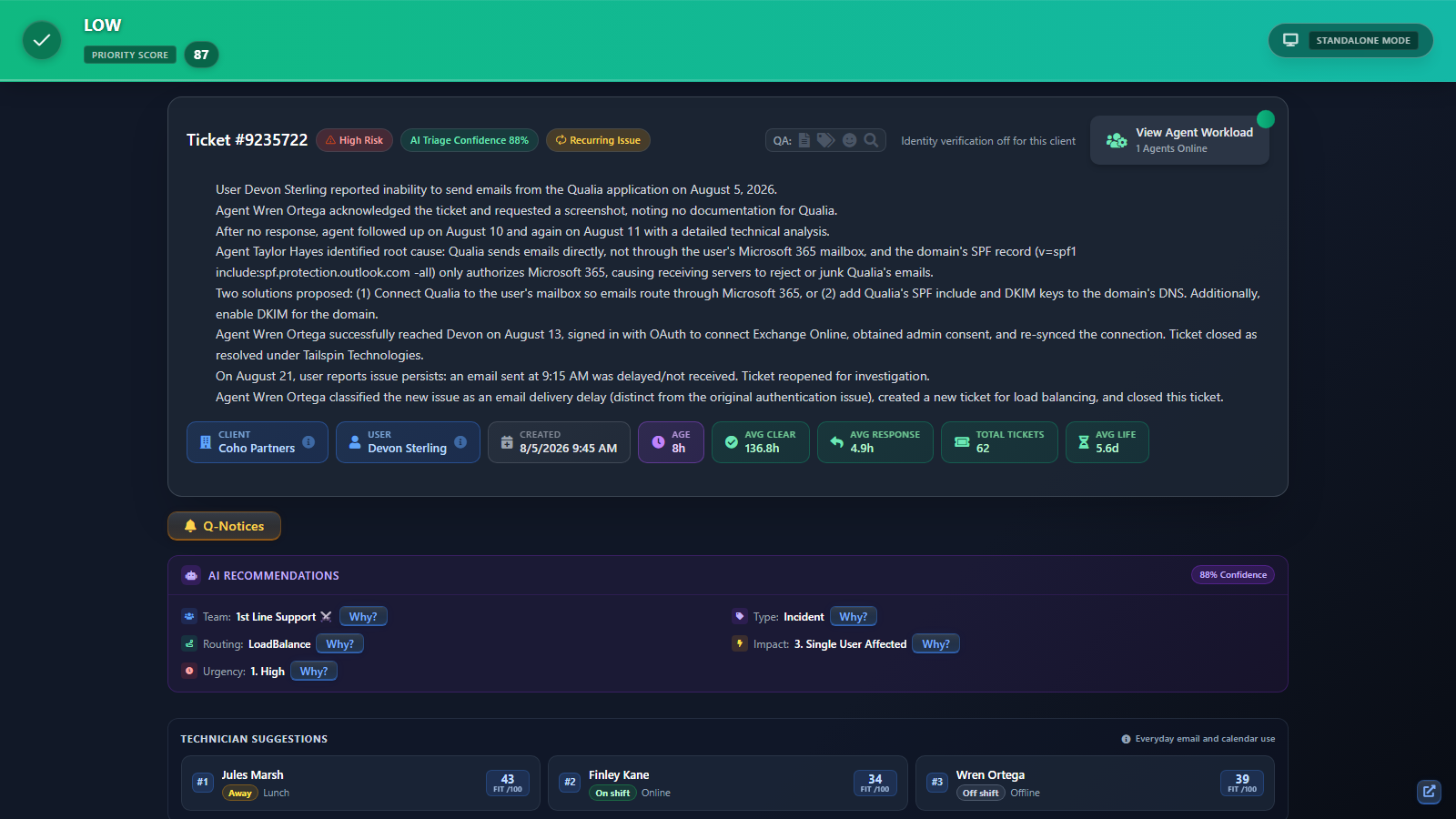
At the right of the coloured priority bar, a badge reads either Dispatcher or Standalone Mode.
- Dispatcher shows the HaloPSA agent who opened the tab, with their name and agent number. Every action you take is credited to that person.
- Standalone Mode means HaloPSA passed no agent to the tab, so actions are not credited to a named dispatcher.
If your browser has verified your agent identity (see Copilot suggestions and reply drafts), QuantumOps credits your actions to that verified identity instead. If you audit who dispatched what and the "Dispatched By" line of a Q-Director Dispatch Summary note reads "System", the action was taken in Standalone Mode without a verified identity.
Read the priority score
The bar shows the Priority Score and a label. QuantumOps works the score out itself rather than copying it from HaloPSA, and until it has scored a ticket the bar shows 50. A lower number means a higher priority.
The score weighs, roughly from most to least, sentiment and tonality alerts and the ticket's health, the client's standing (VIP, high risk and negative feedback), whether the ticket is stale or unhealthy and how old it is, whether the issue is recurring, and the history of the user who raised it.
Read the ticket header
The header card under the bar holds the ticket number and the badges that change how you treat it.
- VIP and High Risk come from the client's profile. Hover over High Risk for the reason.
- AI Triage Confidence gives the percentage the AI has in its recommendation.
- Recurring Issue appears when the ticket looks like part of a pattern. See Duplicate tickets and recurring issues.
- The QA: strip works as on the Ticket Dashboard. Analyzing... shows while a full analysis runs.
- When the client has identity verification turned on, the verification panel appears here, with a badge for who last verified the caller. See Verifying a caller.
- Q-Notices creates a notice scoped to this ticket. See Issuing a Q-Notice.
Under the badges is a short summary of the ticket, then a row of figures: Client and User (select a badge that shows an information icon to open the profile; select the badge again, the close button or anywhere outside the profile to close it), Created and Age, and, when QuantumOps has history for the client, Avg Clear and Avg Response in hours, Total Tickets, and Avg Life in days.
Use the AI recommendation
When the ticket has been analysed, the AI Recommendations panel shows what the AI suggests: Team, Type, Routing, Impact and Urgency, with the confidence. Select Why? next to any of them to read the reasoning, such as Team Assignment Reasoning or Urgency Assessment Reasoning. The same values fill in the form below, and the AI may also choose the disposition for you.
Nothing is written to HaloPSA until you press Dispatch, Merge Tickets, Close as Spam, Merge on a similar-ticket card, or finish the scheduling wizard. You can always change what the AI filled in.
The heading of the form shows which state you are in:
- AI Triage Recommendation means a prediction exists and pre-fills the form.
- AI Analysis In Progress means the prediction is still being generated. The panel says "Generating prediction... You can dispatch manually below while waiting."
- Manual Dispatch with an AI Unavailable chip means there is no prediction. The controls work the same way, but they are not pre-filled.
The teams and ticket types the AI chooses from are set by your administrator in Q-Director: triage and routing.
If the ticket has not been processed yet, the screen shows Error Loading Triage Dashboard with the reason and a Try Again button.
Pick a technician
Technician Suggestions lists the top three technicians for this ticket, best first, under the label "Ranked by fit & availability".
- #1, #2 and #3 are the ranks.
- A shift badge, On shift, Away or Off shift, shows whether the person is working now, beside their current status. People who are not on shift are ranked lower and flagged.
- Skill and a percentage show how well their skills match the ticket. Hover over it to see the skills that match and those that are missing.
- Fit /100 is the overall score, out of 100. It blends live workload capacity, skill match, client familiarity, burnout safety, work quality and schedule availability. Hover over it for each part.
Select a technician to set Routing to Specific Agent with that person chosen. The list is hidden while the disposition is Schedule Ticket for Agent.
When historical estimation is switched on in the dispatcher workflow settings, the Resolution Estimate and Appointment Duration ranges described on the Ticket Dashboard also appear above the technician list.
Check agent workload
The View Agent Workload button shows how many agents are online. Hover over it to open Agent Workload, which lists agents grouped by team. For each agent it shows a status dot (Online, Available, Away, DND or Offline, from agent presence), the number of open tickets, a warning count for tickets with alerts, and the age in days of their oldest ticket when it is older than two days. Your administrator can limit the list to chosen teams.
Unassigned (Team Queue) sits at the top of the list. Select it, or an agent, to route the ticket there with Routing set to Specific Agent.
Choose a disposition
The Disposition list decides what kind of decision you are making, and the form changes to match. The four choices are Normal Triage & Assignment, Merge into Duplicate Ticket, Close as Spam/Junk and Schedule Ticket for Agent.
Triage and assign a ticket
- Leave Disposition on Normal Triage & Assignment.
- Set Team. A team is required.
- Set Routing: Load Balance, Round Robin and Intelligent assign automatically, and Specific Agent assigns to the technician you picked above.
- Set Type, Impact and Urgency. The form has no Priority field.
- Select Dispatch.
QuantumOps updates the ticket in HaloPSA and adds a private note titled Q-Director Dispatch Summary. The note records who dispatched, when, the action, the ticket type, the team, the assignment, the impact and the urgency. A confirmation says the ticket was dispatched to the team, and QuantumOps analyses the ticket again, which uses AI tokens.
If you change the team, type, impact or urgency from what the AI recommended, QuantumOps records the correction so it can be reviewed. See Override and feedback review.
When appointment scheduling is switched on in the dispatcher workflow settings, Routing is Specific Agent and a technician is chosen, the form also shows Commitment, Appointment Type and a list of Available Slots. Pick a slot and Dispatch books the appointment as well. Commitment appears when your settings offer both choices, and Appointment Type is greyed out when your settings do not let dispatchers change it. See Dispatch workflow and scheduling settings.
Merge into another ticket
- Set Disposition to Merge into Duplicate Ticket.
- Under Merge Into Ticket, choose one of the client's other open tickets. If duplicates were found, the best match is already chosen. If the client has no other open tickets, the screen says so.
- Select Merge Tickets and confirm. The confirmation says the merge cannot be undone.
QuantumOps adds a Ticket Merged note to the merged ticket, recording who merged it and into which ticket. Unlike the dispatch note, this note is not marked private, so the customer can see it.
Close a ticket as spam
- Set Disposition to Close as Spam/Junk.
- Read the warning that this action cannot be undone.
- Select Close as Spam and confirm. The confirmation adds that all e-mail from this sender is blocked.
Schedule a ticket
- Set Disposition to Schedule Ticket for Agent.
- Select Open Scheduling Wizard. The wizard has three steps. Select Next to move on and Back to return.
- In Select Agent, choose a technician. The one the AI recommends is marked AI Recommended. Each technician shows their team, status, next free time and skill match. If none are available, select Retry.
- In Confirm Estimate, check the Appointment Duration Estimate, change the Duration in steps of 30 minutes, choose an Appointment Type and, if your settings offer it, a Commitment Level: Tentative is a provisional hold that can be moved, and Firm is a confirmed commitment.
- In Pick Time Slot, move between days, choose a slot (slots the AI suggests are marked AI) and select Schedule. If a day has no slots, move to another day. If the last day has none, select Extend by 5 days.
Pressing Schedule books the appointment and then dispatches the ticket to that technician, using the team from the AI recommendation, or the team you chose under Normal Triage & Assignment before you switched. The Schedule form has no Team field. If no team is set, the appointment is still booked and QuantumOps then shows "Please select a team". Switch Disposition back to Normal Triage & Assignment, choose the Team, set Routing to Specific Agent with that technician and select Dispatch.
Open the page in a new tab
When the dashboard runs inside HaloPSA, a small button at the bottom right opens the same screen in a new browser tab. Use it if the embedded view stops responding.
Related pages
- Duplicate tickets and recurring issues, for the cards that sit below the form.
- Q-Director: triage and routing, for the settings behind this screen.
- Dispatch workflow and scheduling settings, for scheduling and estimates.
- Triage tab, the same recommendation in the browser extension.
- What QuantumOps writes into HaloPSA, for the dispatch note.
- The Ticket Dashboard in HaloPSA, the same ticket explained rather than routed.
Was this helpful?
Still need help? Ask the team