Guide notes in HaloPSA and their action pages
The nine Guide Action screens are the small pop-up pages behind the private guide notes in a HaloPSA ticket: confirming a path, sending, modifying or skipping a step, creating a custom approach and getting help.
Written By Chris Scaminaci
Last updated About 2 hours ago
The Interactive Guide does its work in small pop-up pages: confirming a path, sending a message, modifying or skipping a step, creating a custom approach and getting help. Agent Assist opens two of them, Create Custom Approach and the Qubit Guide Assistant. The private guide notes that QuantumOps can add to a HaloPSA ticket carry links to the guide's action pages. Technicians use them while they work a ticket.
Before you start: guide notes are added to HaloPSA only when Enable Halo Posting is on. It is off by default, and it also needs Enable Interactive Guide, which is on by default. Both are on the Guides tab of Q-Director Settings; see Q-Director: guides and the guide simulator. The action pages work only inside HaloPSA and in the pop-up windows that Agent Assist opens. Opened straight from a browser address bar they show Access Denied, and they do not ask you to sign in to QuantumOps. Each page opens in its own small window, and most close themselves when you finish. Interactive Guide is a module that is on unless an administrator turned it off.
Read the guide notes in HaloPSA
With guide posting on, QuantumOps adds three kinds of private note to the ticket. Private notes are hidden from the customer. They appear under the name of the ticket's assigned agent, or as Q-Director when the ticket has none. For everything QuantumOps writes into HaloPSA, see What QuantumOps writes into HaloPSA.
The links in the notes lead to the guide's action pages, which the sections below describe: Send a message for a step, Modify a step, Skip a step, Get help while you work, Why a path is not recommended and Create a custom approach.
Confirm a path
The Confirm Trajectory Selection page shows the path you picked as Selected Path with its numbered steps, an Add Notes (Optional) box, Confirm Selection and Cancel.
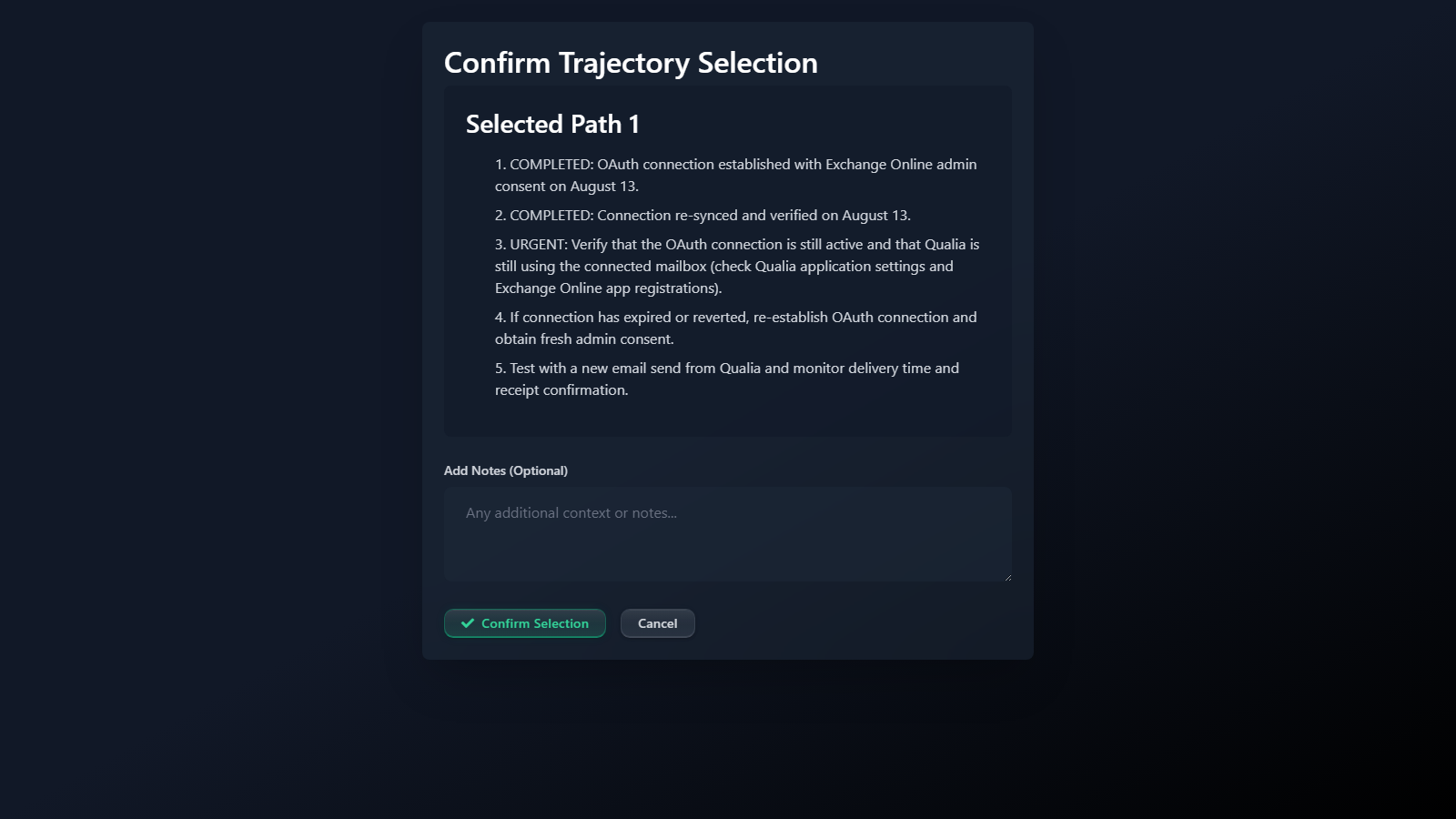
- Read the steps.
- Add a note if you want one.
- Select Confirm Selection. The guide starts, the window closes and, with guide posting on, the first step is posted to the ticket as a step note.
This page opens from Select This Path Anyway on the page described in Why a path is not recommended.
Send a message for a step
The Send Message page shows the Current Step, the Message to Send, a checkbox and a box for notes.
- Write or edit the Message to Send. It may start as a short greeting that restates the step.
- Tick Send as private note if the customer should not see the message. The full label adds that the note is not visible to the end user. The box is unticked at first.
- Add Additional Notes (Optional) if you want to record something about the action.
- Select Send Message.
The step is marked complete and the next step is created. With guide posting on, the message is posted to the ticket as a note, visible to the customer unless you ticked the private box, followed by the note for the next step, or the completion note after the last step. With guide posting off, the step is recorded as complete and nothing is posted to HaloPSA.
The page also offers Skip This Step and Cancel. Skip This Step marks the step skipped and closes the window. Unlike Skip This Step on the Skip Step page, it does not post the next step note, and it posts nothing to HaloPSA. To skip a step and move on, use Skip a step, which records a reason, or Skip in Agent Assist.
To e-mail the customer from a guide step, use Send Email in the Agent Assist reply panel, described in Agent Assist.
Modify a step
The Modify Step page lets you reword a step.
- Read the Original Step:.
- Rewrite it under Modified Step:. The box starts with the current text.
- Add a Reason for Modification (Optional):.
- Select Save Changes. It stays unavailable until the box has text.
The guide keeps the original wording and your reason with the step. With guide posting on, the updated step is posted to the ticket as a new step note. The window closes.
Skip a step
The Skip Step page lets you skip a step and record why.
- Read the Step to Skip:.
- Choose a Reason for Skipping:: Not applicable to this ticket, Already completed, Customer preference, Technical limitation or Other reason. If you choose Other reason, describe it under Please specify:.
- Select Skip This Step. It stays unavailable until you choose a reason.
The page warns that skipping steps may affect the resolution quality, and that you should skip only when you are certain the step is not needed. The step is recorded as skipped with your reason. With guide posting on, the next step note is posted, or the completion note after the last step.
Create a custom approach
The Create Custom Approach page opens from Create Custom Approach or Change Path in Agent Assist. If the ticket already has a guide running, select Abandon on it in Agent Assist first: a custom approach starts a separate guide and does not end the running one.
- Describe your approach under Describe Your Approach.
- Add Additional Context (Optional) if it helps.
- Select Generate Custom Steps. While it works the page reads Generating custom approach....
- Read the Generated Steps. Every custom approach gets the same five general steps: put it into action, monitor progress, adjust, document the resolution and verify the fix. Your description is kept with the guide.
- Select Use This Approach to start it as the guide for the ticket, or Regenerate to clear the steps and generate again.
Use This Approach closes the window. With guide posting on, the first step is posted to the ticket as a step note. In Agent Assist, select Refresh to load the new guide. A guide started this way shows Path Type as Custom.
Why a path is not recommended
The Why This Path Isn't Recommended page lists the first three steps of a path, with two buttons:
- Select This Path Anyway opens Confirm a path for that path.
- Close closes the window.
Agent Assist does not link to this page.
Get help while you work
Two assistants are available, and they differ in scope.
Quick Help Assistant. Its subtitle reads Get help with your current step or ticket. The top of the window shows the Current Step: and its Description:, or the Ticket: when no step is current. Type a question under Ask for help with your current step... and send it. Whatever you ask, the reply is the same fixed text: a checklist for the current step, when there is one (review its requirements, check that the earlier steps are done, consider client-specific factors), then a pointer to Full Interactive Chat and a line saying the answer is simplified. Use Full Interactive Chat for an answer about the ticket. After an answer, Post to Ticket appears. With guide posting on, it posts your question and the answer to the ticket as a private note, marked as generated by the Quick Help Assistant. With guide posting off, nothing is posted to the ticket.
Qubit Guide Assistant. Help and Chat with Qubit in Agent Assist open it, and so does Full Interactive Chat. It is a full conversation about the ticket. The bar above the chat shows the ticket, the current step and the status of the guide. Type a question, or select a quick question under Quick questions:: What should I do next?, Explain this step, Risks of skipping or Similar tickets. While it works the window reads Guide Assistant is thinking.... Where file attachments are enabled for your organisation, you can attach a file or paste a screenshot. It uses the same chat as Qubit elsewhere; see Chat with Qubit from a HaloPSA dashboard and Chat with Qubit.
Which actions post to HaloPSA
This table covers what happens with guide posting on. With it off, none of these actions post to HaloPSA.
Send Email and Post Note in the Agent Assist reply panel do not depend on guide posting.
Related pages
- Agent Assist: the screen that opens the custom approach and chat pages.
- Q-Director: guides and the guide simulator: where guide posting is switched on.
- What QuantumOps writes into HaloPSA: every kind of note and field QuantumOps writes into a ticket.
Was this helpful?
Still need help? Ask the team