The User Dashboard
The User Dashboard shows one end user's ticket history, health, risk and AI profile, and lets you verify the caller where the client uses identity verification.
Written By Chris Scaminaci
Last updated About 2 hours ago
The User Dashboard is the support history and profile of one person at a client: the human who raises the tickets, not the technician who works them. Technicians open it to prepare for a conversation, and to see how carefully the person needs handling.
Before you start: you reach this dashboard from another QuantumOps dashboard inside HaloPSA (see the next section). Opened straight from a browser address bar it shows Access Denied, and it does not ask you to sign in to QuantumOps. Identity verification in the header needs identity verification to be turned on for the person's client. See Identity verification.
Open the dashboard
- From a ticket: select View User on the Ticket Dashboard. Back to Ticket in the dashboard's header then returns you to that ticket.
- From the Users list on a Client Dashboard.
Both open the dashboard inside the HaloPSA tab you were already using. There is no HaloPSA tab for the User Dashboard itself yet: its card is listed as Coming Soon in the Dashboard Setup step of the setup wizard and under Dashboards in Q-Director Settings. The browser extension shows the same information in its User tab; see The User tab.
Read the top bar
The header shows the person's name and their client. Select the client's name to open the Client Dashboard. Badges appear where they apply: VIP User, High Risk and Previous Issues, which means the person has given negative feedback before. A bell shows the active Q-Notices for the person; select it to list them. See Q-Notices.
The header buttons are Back to Ticket # (only when you came from a ticket) and Refresh.
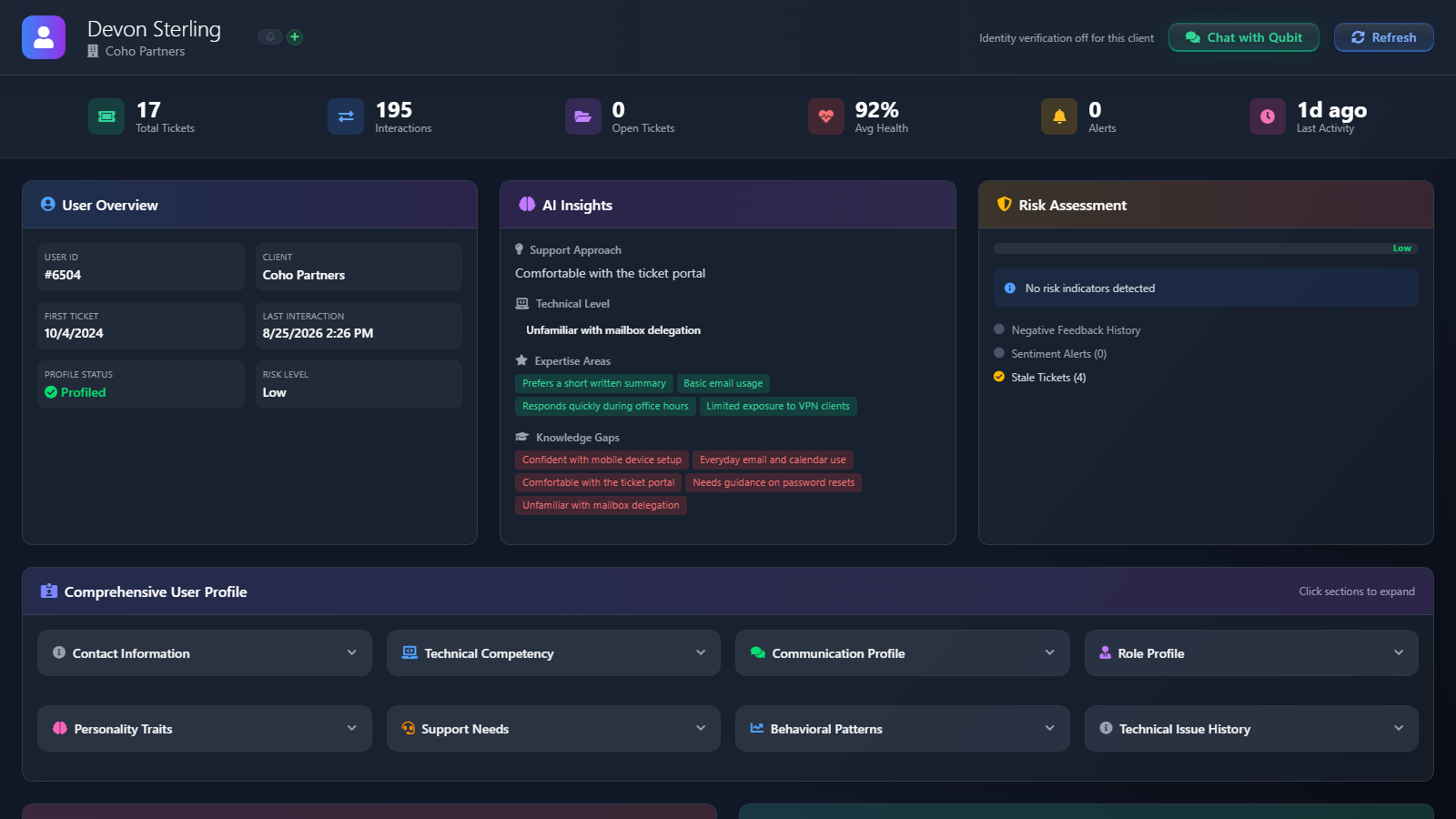
Six counters sit under the header:
Understand the person
User Overview gives the context for everything else:
Risk Level follows what QuantumOps knows about the person. High Risk is the High Risk flag. Moderate means they have given negative feedback before. Elevated means more than three sentiment alerts. Otherwise it is Low.
AI Insights says how to work with this person:
- Support Approach: how QuantumOps suggests handling them, built from their technical level (once a profile exists) and from the VIP and High Risk flags. When none of these applies it reads "Standard support approach recommended."
- Technical Level: how much technical detail suits them.
- Expertise Areas and Knowledge Gaps: what they know well and where they will need more explanation. Up to five of each are shown.
The Comprehensive User Profile below holds more detail in expandable sections. Select a section to open it (Click sections to expand). Which sections appear depends on what the profile contains.
Use with care. AI profiles are inferred from ticket text, so check them before you rely on them.
Check the risk
Risk Assessment shows the risk level as a gauge with a short reason, then three factors, each marked when it applies:
- Negative Feedback History: the person has given negative feedback before. It is also what puts the Previous Issues badge in the header.
- Sentiment Alerts, with a count: tickets with a sentiment alert.
- Stale Tickets, with a count: tickets that have gone quiet.
Review their tickets
Verify the caller
Where the person's client uses identity verification, the header can show the verification panel, so you can prove who you are talking to without going back to a ticket. The panel and the validity badge beside it work as described in Verifying a caller. The badge shows who verified the person last, and how much of the verification window is left. It always says which ticket the verification belongs to: a verification on another ticket, or on no ticket, does not cover the call you are on.
What the header shows depends on three things:
- Identity verification off for this client appears when the client is not enabled for it.
- Verify identity: sign in to this embed appears when QuantumOps cannot tell who you are. It is a prompt, not a fault.
- The panel appears when verification is available, QuantumOps knows the person's e-mail address and it has verified who you are.
After a verification run, a line reads Caller verified with the time, in green, or Caller NOT verified, in red.
A verification is tied to a ticket where it can be. If you came from a ticket (the Back to Ticket button shows which) and that ticket belongs to this person, the verification is recorded against it. Opened any other way, it runs without a ticket.
Refresh the figures
Refresh reloads the figures from QuantumOps. It does not re-run the AI analysis.
Review remembered facts
When support memory is enabled for your organisation, the person has facts on record and QuantumOps has verified who is viewing, a Memory Graph card lists them with a count of active and superseded facts. See Support memory.
If the page does not load
Loading User Data appears while the page fetches the person. Unable to Load User Data appears when it cannot, with a Try Again button.
Related pages
- The Client Dashboard: the account the person belongs to.
- Verifying a caller: the verification panel and the validity badge in full.
- The Ticket Dashboard in HaloPSA: where the View User button lives.
- Client, User and Agent tabs: the same view in the browser extension.
- Support memory: the memory behind the Memory Graph card.
Was this helpful?
Still need help? Ask the team