Alert Engine (legacy)
The Alert Engine is the older alerting screen; this page shows how to move your existing alerts into Q-Notice auto-rules and what to check afterwards.
Written By Chris Scaminaci
Last updated About 2 hours ago
The Alert Engine is the older way to raise alerts, and it is legacy. Alerts you already have in it keep running, but new alerting belongs in Q-Notice auto-rules. Sentiment and tonality alerts do not come from the Alert Engine. To add a chat card for them, use the sentiment template in auto-rules. Looking for sentiment and stale alerts? See Working the alert feed in Customer Success. For the alerts on the dispatch board, see Intel: alerts, capacity and AI insights.
Before you start: only Administrators can open the Alert Engine, at /alertengine. The sidebar entry is labelled Alert Engine (Legacy). Only Administrators see the entry; anyone else who types the address gets an access-denied page. To import alerts you also need access to the Auto-Rules tab of the Q-Notice Hub, which an Administrator has.
Move your alerts to auto-rules
One import copies every alert. Nothing is deleted, and each original is switched off so that an alert fires through one engine only.
- Open the Q-Notice Hub and select the Auto-Rules tab. See Q-Notices.
- Select Import from legacy Alert Engine.
- Read the status line that appears. It tells you how many alerts were found, how many were moved, how many were already moved, how many were renamed and how many originals were switched off.
Each alert becomes a rule with the alert's name, trigger, check interval, conditions, channels and suppression settings. If an alert's name matches a different rule that already exists, QuantumOps gives the new rule a new name, with a short code added, so that neither is lost.
You can run the import again safely. Alerts that were already moved are skipped, and an original that someone switched back on is switched off again.
Once TechPulse has moved your organisation fully to auto-rules, an alert you have not imported stops firing, so import your alerts first.
Check each rule after you import
Open each new rule from the Auto-Rules tab with Edit and check the following. Q-Notice auto-rules explains every setting.
- Conditions. They are copied as they were. Compare them with the original alert.
- Channels. A rule delivers to the real-time dashboard, Slack, Teams and e-mail. A channel of another kind, such as PagerDuty or a generic webhook, is copied but cannot be delivered, and the notice's audit log shows a failed delivery. Add Slack, Teams or e-mail to the rule instead. An e-mail channel keeps its recipients. Check where each Slack or Teams message goes; see How Q-Notices are delivered.
- Suppression. The suppression window carries over. Make sure it still suits the alert.
- On or off. A rule keeps the state its alert had. An alert that was switched off becomes a rule that is switched off.
- The notice it creates. Every imported rule creates a Q-Sentinel notice with Warning severity and a message made of the alert's name followed by triggered. The notice has no expiry and its target follows the data the conditions read. Change the type, severity, message and Expiration (minutes) to suit what people need to see.
- Batching. An alert that batched its messages becomes a rule that collects matches into one digest per window. The rule editor has no batching option, and saving changes to the rule turns the digest off.
Do not switch an original alert back on while its rule is enabled: both would fire.
What the five tabs are for
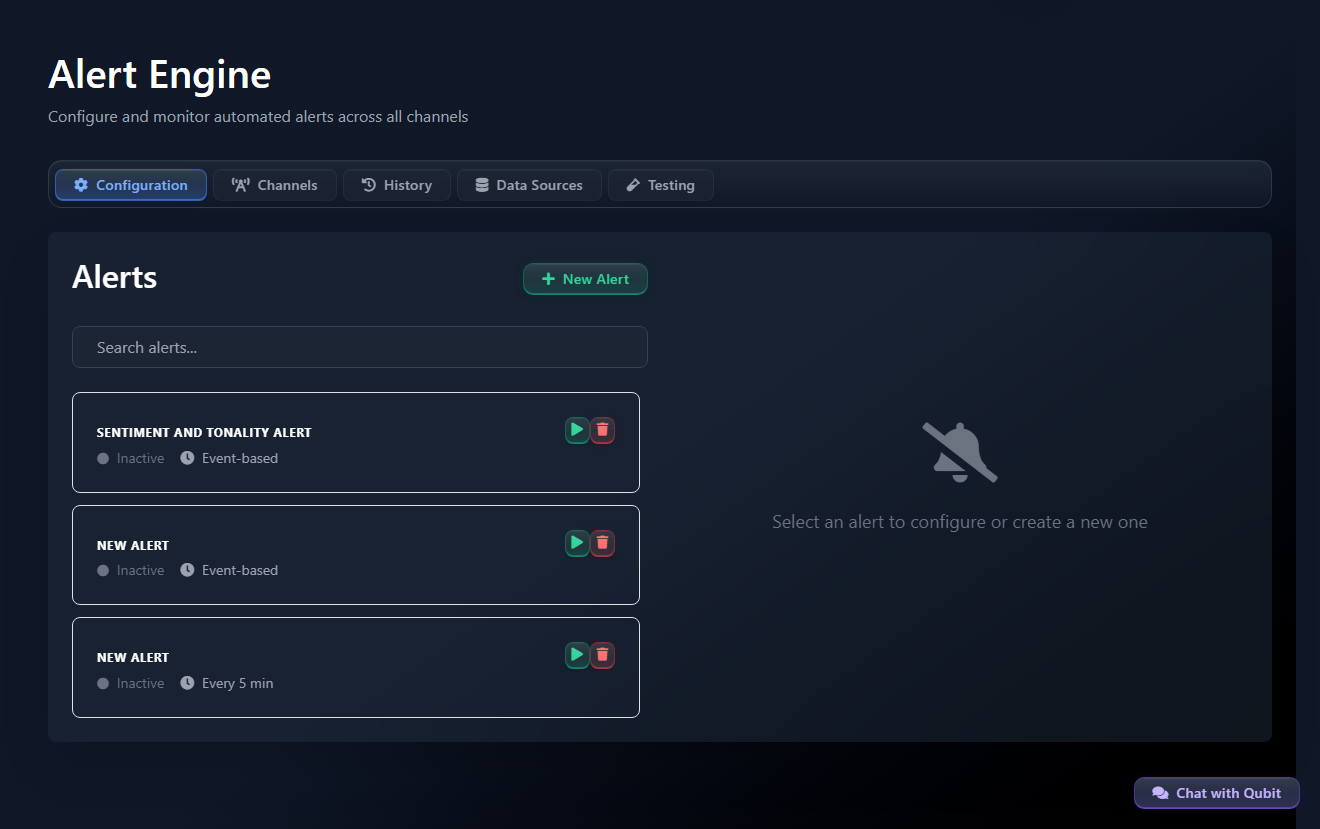
You can still open the Alert Engine to read an alert before you move it. Its tabs are:
- Configuration: the list of alerts and each alert's trigger, conditions and suppression.
- Channels: where the selected alert is sent: Email, Slack, Teams, PagerDuty, Webhook or UI.
- History: the alerts raised in the last seven days.
- Data Sources: the ticket, client and user fields that conditions can use.
- Testing: simulated alerts, to try an alert's conditions and channels.
This page does not describe their settings, because the next step for every alert is to move it.
Related
- Q-Notice auto-rules: where alerts live now, and the sentiment template.
- Q-Notices: the notices a rule creates.
- Agent Runners: a runner can start on an Alert Engine event (legacy) or on a Q-Notice event.
Was this helpful?
Still need help? Ask the team